Most “run an LLM locally” guides quietly assume you have either an Apple Silicon Mac or a 24 GB workstation card. The reality for a lot of Windows users is a gaming PC with a 6 GB or 8 GB NVIDIA GPU — an RTX 3050, RTX 4060, or older GTX 16-series card sitting in an otherwise capable machine. The good news is that running a local LLM on a low-VRAM Windows GPU is genuinely practical in 2026: a Q4-quantized 7B model fits comfortably on 8 GB and runs at 40+ tokens per second, and even 6 GB cards handle 3–4B models at chat-grade speeds. This guide walks through the math, the setup, and the model picks for each VRAM tier.
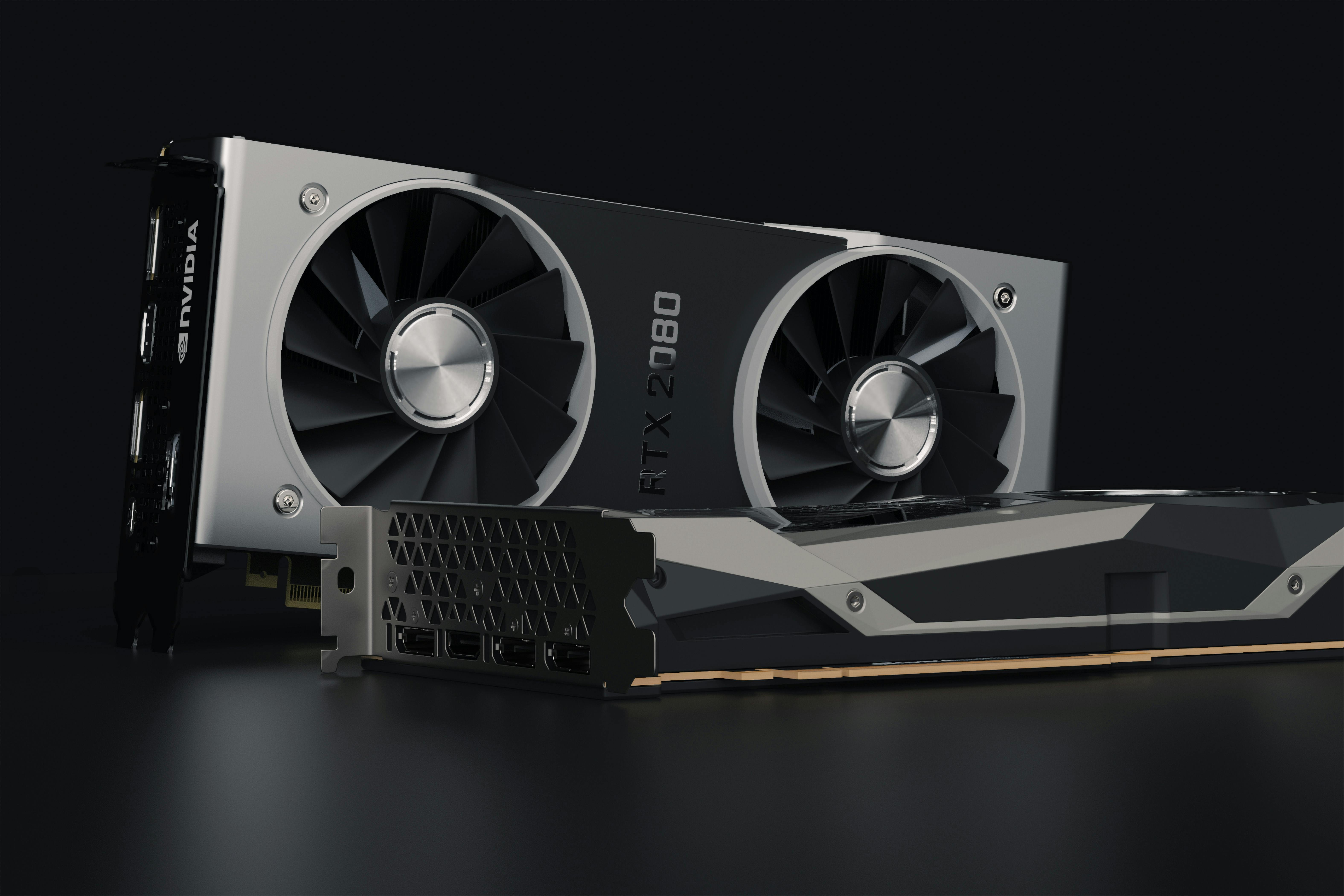
A typical mid-range NVIDIA GeForce RTX card. CUDA, GGUF, and the right quantization let you run a 7B model on 8 GB of VRAM at chat-grade speeds. (Photo: Nana Dua / Pexels, free)
What “low-VRAM” actually means for local LLM inference
For Windows GPU inference in 2026, the practical tiers are:
| VRAM | Typical cards | Realistic model ceiling (Q4_K_M) |
|---|---|---|
| 4 GB | GTX 1650, RTX 3050 4 GB laptop | 1–3B at small context |
| 6 GB | GTX 1660 Ti, RTX 2060, RTX 3050 6 GB, RTX 3060 6 GB (laptop) | 3–4B comfortably; 7B only with aggressive quant |
| 8 GB | RTX 3050 8 GB, RTX 3060 Ti, RTX 3070, RTX 4060 | 7–8B comfortably; 9B with reduced context |
| 12 GB | RTX 3060 12 GB, RTX 4070, RTX 3080 12 GB | 13–14B comfortably; 32B with hybrid offload |
The 8 GB tier is the sweet spot for budget local LLM use because the most capable open small models — Llama 3.1 8B, Qwen2.5 7B, Mistral 7B, Phi-4 — all fit cleanly with room left for KV cache. The 6 GB tier puts you in the 3–4B model range, which is fine for chat, summarization, and lightweight coding help but won’t compete with the 7–8B class on reasoning tasks.
If you want a broader framing of model-size-to-RAM tradeoffs that applies to system memory as well as VRAM, see our RAM requirements guide for local LLMs.
The VRAM math: weights plus KV cache
Two things consume GPU memory during inference: the model’s weights, and the key-value (KV) cache that grows with context length.
Model weights at Q4_K_M quantization use roughly 0.6 GB per billion parameters. A 7B model is about 4.5 GB on disk and in memory; an 8B model is about 5 GB. At Q5_K_M, multiply by ~1.2; at Q8_0, by ~2.
KV cache scales linearly with context length and model architecture. The per-token formula is 2 × layers × KV heads × head dim × bytes per element. For Llama 3 8B at 32K context in FP16, that works out to roughly 4.0 GB just for the cache. Modern models use Grouped Query Attention (GQA), which reduces the KV head count and shrinks the cache substantially compared to older architectures.
The takeaway: a 7B model at Q4 fits in 8 GB only if you keep the context modest (4K–8K is fine; 32K starts pushing into spillover). Reducing context to 2048 tokens frees 1–2 GB of cache headroom on most models, which is the first knob to turn when a model is OOMing. Quantizing the KV cache itself to 8-bit roughly halves the cache size with minimal accuracy impact, and llama.cpp exposes flags to do this (--cache-type-k q8_0 --cache-type-v q8_0).
Setup: Ollama on Windows
Ollama is the fastest path to a working model. The Windows installer ships native CUDA support and detects an NVIDIA GPU automatically — there’s no separate CUDA toolkit install required for the runtime. Download the Windows installer from ollama.com, run it, and from PowerShell:
ollama pull llama3.1:8b
ollama run llama3.1:8b
Ollama will offload as many layers to the GPU as fit. You can confirm what landed on GPU vs CPU with ollama ps after the first generation — the PROCESSOR column reports the split.
To cap context length and free VRAM, pass --ctx-size at run time:
ollama run llama3.1:8b --ctx-size 4096
Ollama supports NVIDIA GPUs with compute capability 5.0 or higher and driver 531+. That covers Maxwell (GTX 900-series) through the current RTX 50-series — almost any consumer NVIDIA card from the last decade.
If a model only partially offloads (some layers on GPU, the rest on CPU), expect generation speed to drop sharply — often 3–5× slower than a full GPU fit. The trade is usually not worth it; pick a smaller model or a tighter quant rather than spilling layers to CPU.
Setup: llama.cpp on Windows with CUDA
llama.cpp gives you more control and, on Windows specifically, slightly better throughput at prompt processing. The project now ships prebuilt Windows binaries with CUDA, Vulkan, HIP, and SYCL backends, so most people no longer need to compile from source. Grab a release from the ggml-org/llama.cpp releases page — the CUDA build needs CUDA Toolkit 12.4+ or 13.1+ installed.
If you want to build from source for a specific GPU architecture or to enable extra features:
git clone https://github.com/ggml-org/llama.cpp
cd llama.cpp
cmake -B build -DGGML_CUDA=ON
cmake --build build --config Release
This requires Visual Studio 2022 with the Desktop C++ workload and the CUDA Toolkit installed. A clean build takes 20–30 minutes.
Run a model with full GPU offload:
.\build\bin\Release\llama-cli.exe `
  -m .\models\Qwen2.5-7B-Instruct-Q4_K_M.gguf `
  -ngl 999 `
  --ctx-size 4096 `
  --conversation
The -ngl 999 flag offloads all layers to the GPU (the number is capped at the model’s actual layer count). For a server endpoint exposing an OpenAI-compatible API:
.\build\bin\Release\llama-server.exe `
  -m .\models\Qwen2.5-7B-Instruct-Q4_K_M.gguf `
  -ngl 999 `
  --port 8080
To enable KV cache quantization when you’re tight on VRAM:
.\build\bin\Release\llama-cli.exe `
  -m .\models\Qwen2.5-7B-Instruct-Q4_K_M.gguf `
  -ngl 999 `
  --ctx-size 8192 `
  --cache-type-k q8_0 `
  --cache-type-v q8_0
For more on the tradeoffs between llama.cpp, Ollama, and LM Studio on Windows, see our Ollama vs LM Studio vs llama.cpp comparison.
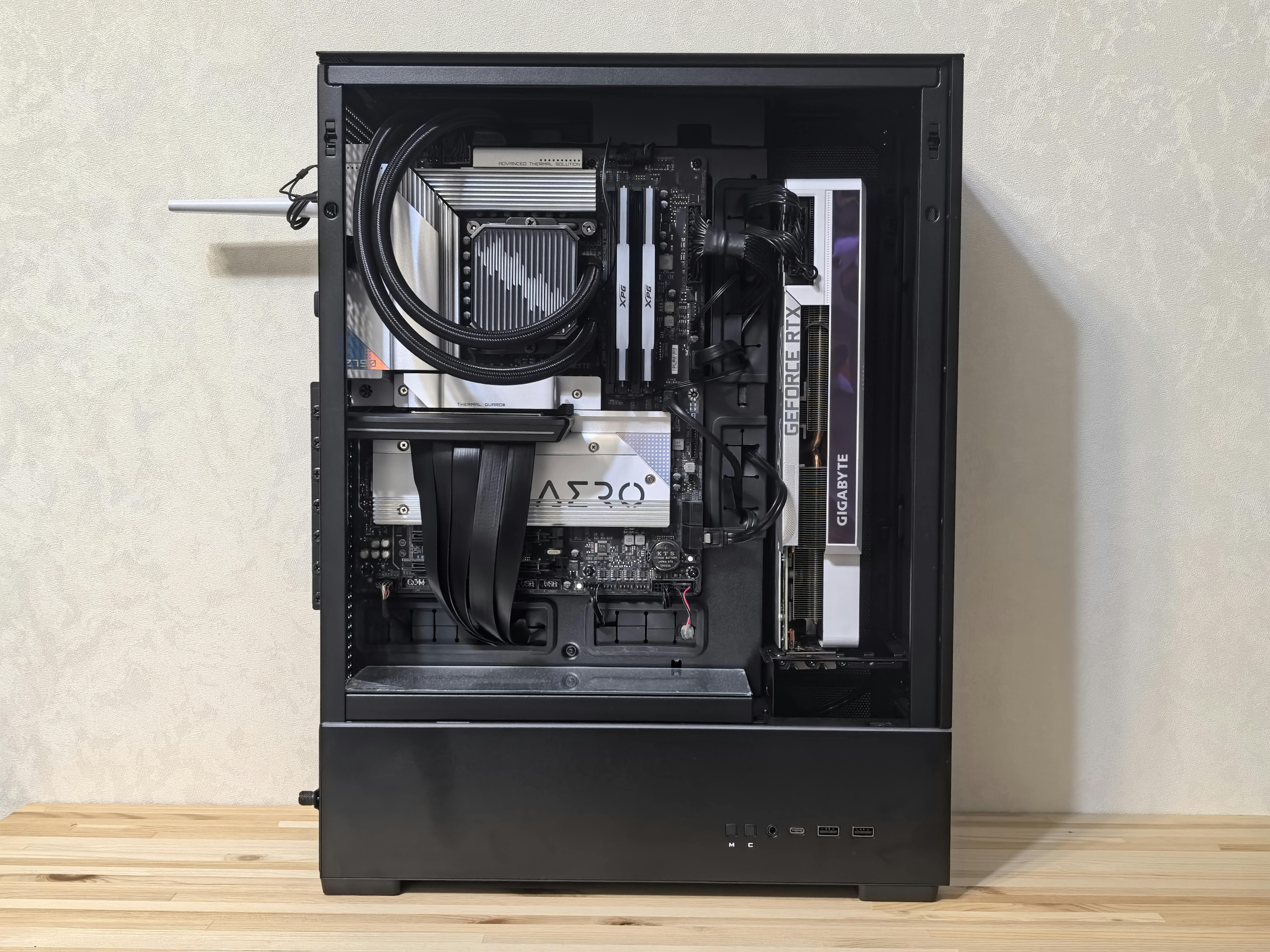
A budget gaming PC with an 8 GB RTX 4060 will run a Q4-quantized 7B model at 40+ tokens per second — fast enough for real-time chat and coding assistance. (Photo: Andrey Matveev / Pexels, free)
Real benchmarks by VRAM tier
These are measured numbers from published benchmarks, all using Q4 quantization.
8 GB tier: RTX 4060
The RTX 4060 8 GB is the modal budget card for new builds in 2026. With models that fit fully in VRAM (under ~5 GB at Q4), it consistently hits 40+ tokens per second:
| Model | Params | Tok/s (gen) |
|---|---|---|
| Mistral 7B | 7B | 50.9 |
| DeepSeek-Coder | 6.7B | 52.9 |
| CodeLlama | 7B | 52.7 |
| Llama 3.1 8B | 8B | 41.7 |
| Qwen 2.5 7B | 7B | 42.2 |
| Gemma 2 9B | 9B | 18.0 |
| Llama 2 13B | 13B | 8.0 |
Source: published Ollama benchmarks on RTX 4060 8 GB at Q4 quantization.
The cliff between 8B and 9B is real: Gemma 2 9B at Q4 doesn’t quite fit in 8 GB once the KV cache is allocated, so layers spill to CPU and throughput drops to 18 t/s. The 13B model is unusable at 8 t/s. The lesson: stay under 8B on an 8 GB card, or use Q3 quantization for anything larger.
12 GB tier: RTX 3060
The RTX 3060 12 GB remains the price-per-VRAM champion on the used market — it routinely sells for $200–250 used in 2026. Its 360 GB/s memory bandwidth is unspectacular but the 12 GB capacity is what matters:
| Model | Params | Tok/s (gen) | Source |
|---|---|---|---|
| Llama 2 7B (Vulkan) | 7B | 60.2 | Geerlingguy |
| Qwen3 8B (CUDA, 16K ctx) | 8B | 42.0 | Hardware Corner |
| Llama 2 13B (Vulkan) | 13B | 32.8 | Geerlingguy |
| DeepSeek-R1-Distill-Qwen 14B | 14B | 29.4 | Geerlingguy |
| Qwen3 14B (CUDA, 16K ctx) | 14B | 22.7 | Hardware Corner |
The 12 GB tier comfortably runs 13–14B models — well above what 8 GB cards can manage — at speeds that are still well above the ~20 t/s threshold where chat feels responsive. It’s the most capable budget option for someone who wants headroom beyond 8B without paying for a 16 GB or 24 GB card.
6 GB tier: RTX 3050 / RTX 2060 / RTX 3060 laptop
6 GB is the floor for comfortable local inference. You’re effectively limited to 3–4B models at Q4 with a usable context window:
| Model | Params | Tok/s (gen) | VRAM |
|---|---|---|---|
| Gemma 2 2B | 2B | 35–45 | ~1.7 GB |
| Llama 3.2 3B | 3B | 25–35 | ~2.5 GB |
| Phi-4 Mini | 3.8B | 20–25 | ~3 GB |
| Qwen 2.5 3B | 3B | 20–30 | ~2.2 GB |
7B models at Q4 need ~5.5 GB plus context — too tight for 6 GB once the KV cache is allocated. You can squeeze a 7B in at Q3_K_M (around 4 GB), but the quality drop is large enough that a strong 3–4B model at Q4 will usually outperform it. Phi-4-mini is a particularly good 6 GB pick; for a full walkthrough see our Phi-4-mini deployment guide.
Recommended models by VRAM tier
| VRAM | Pick this | Why |
|---|---|---|
| 6 GB | Phi-4-mini (3.8B) at Q5_K_M | Best reasoning-per-parameter at the 4B scale; fits with 4K context |
| 6 GB | Llama 3.2 3B at Q4_K_M | Fastest acceptable-quality option; 25–35 t/s |
| 8 GB | Qwen 2.5 7B at Q4_K_M | Best general-purpose 7B; strong on code and multilingual |
| 8 GB | Llama 3.1 8B at Q4_K_M | Best all-rounder; widest tooling support |
| 8 GB | DeepSeek-Coder 6.7B at Q4_K_M | Fastest model on 8 GB at 52 t/s; coding-focused |
| 12 GB | Qwen3 14B at Q4_K_M | Best reasoning at the 14B scale |
| 12 GB | Llama 2 13B at Q4_K_M | Mature tooling; reliable throughput |
For a head-to-head comparison of these models against the rest of the small-model field, see our best small language models of 2026 roundup.
Practical tips
Pick the quant before you pick the model. Q4_K_M is the default for a reason — it’s the best quality-to-size ratio for most use cases. Drop to Q3_K_M only if you genuinely cannot fit Q4. Move up to Q5_K_M or Q6_K only if you have headroom and need the quality.
Cap your context window. Most chat use cases fit in 4K tokens. Defaulting to 32K because the model supports it is the single most common cause of OOM on low-VRAM cards. Set --ctx-size 4096 in llama.cpp or --ctx-size 4096 in Ollama and increase only when you need it.
Use KV cache quantization when tight. llama.cpp’s --cache-type-k q8_0 --cache-type-v q8_0 flags cut KV cache memory roughly in half. The accuracy impact is small for most use cases.
Avoid partial CPU offload on consumer cards. If a model needs to spill 20% of its layers to CPU, throughput typically drops 3–5×. A smaller model that fits entirely on GPU will almost always feel faster than a larger one that spills.
Close the browser. Windows itself uses 500 MB to 1.5 GB of VRAM for the desktop compositor. Chrome with a handful of tabs can use another 500 MB. On 8 GB cards, those allocations can be the difference between Q4 fitting and not fitting. For long inference sessions, run with as little else on the GPU as possible.
For details on how GGUF compares to MLX (Apple Silicon) and ONNX (Windows DirectML / CPU), see our GGUF vs ONNX vs MLX format guide.
Frequently asked questions
Can I run a 7B model on 6 GB of VRAM? Not comfortably at Q4. A 7B Q4_K_M model is ~4.5 GB of weights and needs another 1–2 GB for context — that puts you right at the 6 GB ceiling before Windows takes its share. Q3_K_M will fit but the quality drop is noticeable. A 3.8B model at Q5_K_M is usually the better choice on 6 GB.
Is 8 GB of VRAM enough for local LLMs in 2026? Yes for the 7–8B class, which covers most practical use cases. Llama 3.1 8B, Qwen 2.5 7B, Mistral 7B, and Phi-4 all run at 40+ tokens per second on an 8 GB card at Q4. You cannot fit 13B+ models without spilling to CPU.
Does AMD or Intel work for local LLMs on Windows? Yes, but with caveats. AMD GPUs work with llama.cpp’s Vulkan or HIP backends, and Intel Arc works via SYCL or Vulkan. Ollama added experimental ROCm support but coverage is narrower than CUDA. For a smooth experience on Windows, NVIDIA + CUDA is still the path of least resistance.
Should I buy an RTX 3060 12 GB or an RTX 4060 8 GB for LLMs? For LLMs specifically, the 3060 12 GB. The extra 4 GB lets you run 13–14B models, which substantially outperform 7–8B models on reasoning tasks. The 4060 is faster per token at the model sizes it can run, but it cannot reach the 13–14B tier at all without painful CPU offload.
How do I check if Ollama is actually using my GPU?
Run ollama ps after starting a generation. The PROCESSOR column shows the split — 100% GPU means full offload, 60% / 40% CPU/GPU means partial. On Windows, you can also check Task Manager → Performance → GPU and watch the dedicated GPU memory usage spike when a model loads.
Sources
- Ollama Hardware support documentation
- llama.cpp build documentation
- Accelerating LLMs with llama.cpp on NVIDIA RTX Systems — NVIDIA Technical Blog
- Nvidia RTX 4060 Ollama Benchmark — DatabaseMart
- Local LLM Speed: RTX 3060, Qwen2 & Llama Benchmark Results — Ajit Singh
- Best Local LLMs for RTX 3060 (12GB / 6GB) in 2026 — PromptQuorum
- Optimizing Local LLMs for Low-End Hardware: 8GB GPU Guide — SitePoint
- llama.cpp b9196 Update: Windows Prebuilt Binaries — KnightLi
- KV Cache Memory Calculation for LLMs — Lyceum Technology