The short answer: for a 3B model at Q4_K_M quantization you need about 4 GB of free RAM. An 8B model needs closer to 7 GB. A 32B model won’t move at all without 22+ GB available. The longer answer depends on which runtime you’re using, how much context you need, and whether you have a GPU.
This post breaks down exactly where that memory goes, with verified file size data pulled from HuggingFace, so you can size your hardware against a specific model rather than guess.

A Raspberry Pi 5 with 8 GB RAM can run a 3B model at Q4_K_M — slowly, but it works. Photo: Harrison Broadbent, Pexels
Where the RAM Actually Goes
When you load a model in Ollama, llama.cpp, or LM Studio, the memory splits into three parts that don’t all scale the same way.
The model weights are the biggest item and the most predictable. For quantized GGUF models, the file size you downloaded is roughly what gets loaded into memory. A 1.92 GB GGUF file loads as 1.92 GB of occupied RAM.
The KV cache is what most RAM guides skip over. It holds the key-value pairs from your conversation context. At a 2K–4K context window, it’s small — a few hundred MB for a 7B model. Push the context to 32K and the same model’s KV cache can exceed 4 GB. Push to 128K and it dominates everything else. Modern SLMs routinely support 128K+ context, so this number matters.
Runtime overhead is the memory the inference engine itself consumes: process allocation, CUDA or Metal context, and graph operations. Ollama’s backend adds roughly 0.5–1 GB on top of model consumption. llama.cpp’s baseline overhead is around 0.75 GB. This overhead is fixed regardless of model size.
Total RAM needed = model file size + KV cache + runtime overhead.
Model Size Reference Table
The table below shows verified Q4_K_M file sizes for five common parameter scales, pulled from bartowski’s GGUF repos on HuggingFace in May 2026. Q4_K_M is the right default for most users: 4-bit mixed precision with minimal quality loss, at about 0.65 GB per billion parameters.
| Parameters | Example Model | Q4_K_M | Q8_0 | F16 |
|---|---|---|---|---|
| ~3B | SmolLM3-3B | 1.92 GB | 3.28 GB | 6.16 GB |
| ~3.8B | Phi-4-mini | 2.49 GB | 4.08 GB | — |
| ~7B | Qwen2.5-7B | 4.68 GB | 8.10 GB | 15.24 GB |
| ~14B | Qwen2.5-14B | 8.99 GB | 15.70 GB | 29.55 GB |
| ~32B | Qwen2.5-32B | 19.85 GB | 34.82 GB | 65.54 GB |
Q8_0 roughly doubles the file size relative to Q4_K_M while giving you near-lossless quality. F16 (full precision) costs about 2 bytes per weight — three times more than Q4_K_M for the same parameter count. For a practical guide to when each format makes sense, see our GGUF vs ONNX vs MLX breakdown.
The KV Cache Is the Hidden Multiplier
Context length is the most underestimated driver of memory consumption. A 7B model at Q4_K_M is 4.68 GB. Add a 32K context window and the KV cache at FP16 precision costs an additional 4–8 GB depending on the model’s attention architecture. That 8 GB GPU that seemed fine for a 7B model suddenly can’t fit the model and the context simultaneously.
Three ways to control KV cache size:
In llama.cpp, pass -c 4096 to cap context at 4K. In Ollama, set OLLAMA_NUM_CTX=4096 before starting the server, or specify num_ctx in a Modelfile. In LM Studio, the context length slider in the model settings directly controls KV cache allocation.
KV cache quantization is available in recent llama.cpp builds. Switching from FP16 to Q8_0 KV cache roughly halves the cache memory cost, with minimal quality degradation on most tasks. On Apple Silicon, MLX inference handles this differently — the unified memory architecture means KV cache draws from the same pool as the OS and other apps, making memory pressure more visible.
CPU-Only vs GPU: Same Model, Different Rules
On GPU, the model weights live in VRAM and everything runs from there. If the model overflows VRAM, llama.cpp starts offloading layers to system RAM — and inference speed collapses. Tests show a 5–30× slowdown once any layers hit system memory. Partial offloading is technically supported but in practice you want the whole model in VRAM.
On CPU-only hardware, the model loads into system RAM and runs there. The performance ceiling is lower — expect 2–8 tokens per second for a 7B model on a fast CPU, versus 30–80 tokens per second on a mid-range GPU. But a CPU system with enough RAM can run larger models than a consumer GPU allows. A machine with 64 GB of system RAM can run a 32B model at Q4_K_M on CPU where an 8 GB GPU cannot.
For a 1B–4B model, CPU inference is genuinely useful. At 7B it starts to feel slow for real-time chat. Above 14B, CPU-only inference is only practical for batch tasks where latency doesn’t matter.
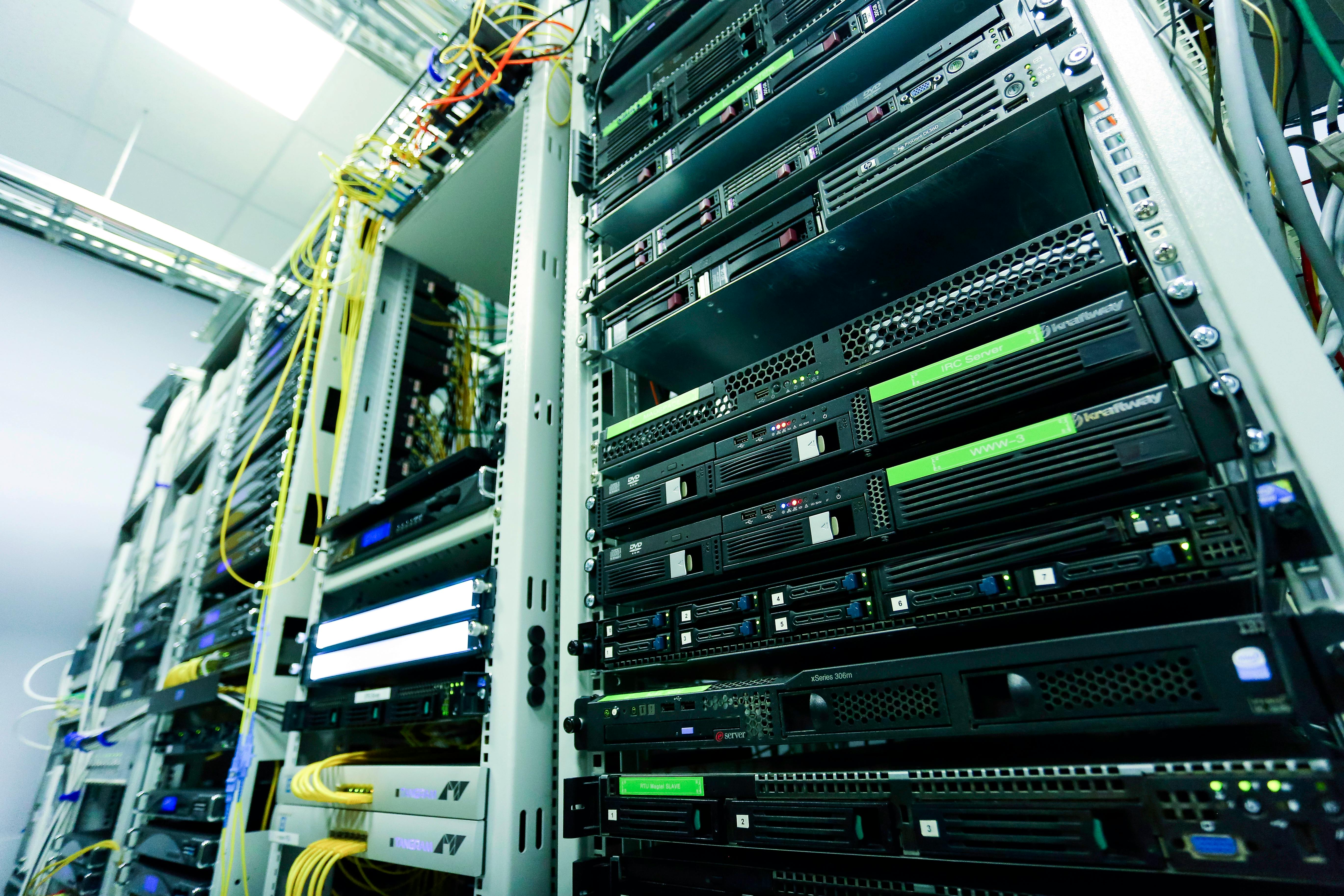
GPU inference needs the whole model in VRAM — once it overflows, performance falls off sharply. Photo: Kaique Rocha, Pexels
Hardware Tiers
8 GB RAM or VRAM
The most common consumer configuration. At Q4_K_M, you can run any model up to about 6B parameters and still have room for KV cache and the OS. SmolLM3-3B (1.92 GB) and Phi-4-mini (2.49 GB) both load cleanly. Qwen2.5-7B at 4.68 GB fits, but leaves under 2 GB for context — you’ll want to keep the context window short.
A 14B model at any useful quantization does not fit in 8 GB. This is a hard limit, not a suggestion.
16 GB RAM or VRAM
The minimum for comfortable inference at the 7B scale. Qwen2.5-7B at Q5_K_M or Q6_K loads with several GB to spare for context. A 14B model at Q4_K_M (8.99 GB) loads, but leaves limited headroom.
On Apple Silicon, 16 GB unified memory is the floor for a practical local inference setup. The GPU and CPU share the same memory pool on M-series chips, so VRAM and system RAM aren’t separate — 16 GB total has to cover the OS, the model, the KV cache, and everything else running.
32 GB RAM or VRAM
At 32 GB, a 14B model at Q8_0 (15.70 GB) loads with room for a long context window. A 32B model at Q4_K_M (19.85 GB) fits comfortably. The 32B tier is where quality gets competitive with hosted API models on general reasoning and instruction-following — if your hardware supports it, the step up from 14B is worth it.
See the best small language models comparison for benchmark data on where the quality tiers actually fall.
64 GB and Above
At 64 GB you can load 70B models at Q4_K_M (~43 GB). This is workstation territory: Mac Studio M3 Ultra, high-end Threadripper systems, or dual-GPU NVIDIA setups. Most people reading this guide aren’t here yet, but a Mac Studio M3 Ultra with up to 256 GB unified memory is a viable single-machine inference server for production workloads.
Quick Q&A
How much RAM does a 7B model actually use in Ollama?
For Qwen2.5-7B at Q4_K_M with a 4K context window: about 6–7 GB total (4.68 GB model + up to 1 GB Ollama backend overhead + ~0.5 GB KV cache). On an 8 GB machine, that leaves under 2 GB for the OS. Possible, but close.
What happens when a model doesn’t fit?
On GPU: llama.cpp offloads overflow layers to CPU RAM. Inference continues but slows 5–30× depending on how much overflows. On CPU: the OS may use swap space, which makes inference effectively unusable — swap access is thousands of times slower than RAM.
Does quantization level affect RAM more than quality?
Primarily RAM. Q8_0 uses roughly twice the memory of Q4_K_M for the same model. Quality difference on evals is real but modest — hard to notice in everyday use. If you’re memory-constrained, Q4_K_M is the right default. If RAM is not the bottleneck and you want the best output from a given model, Q6_K is a good middle ground.
Can a Raspberry Pi run a local LLM?
Yes. A Raspberry Pi 5 with 8 GB RAM can load SmolLM3-3B at Q4_K_M (1.92 GB) and run inference — community reports put CPU-only throughput in the low single digits of tokens per second. That’s slow for real-time chat but workable for offline document processing or batch tasks.
Practical Recommendations
If you have 8 GB: SmolLM3-3B or Phi-4-mini at Q4_K_M. Both are capable at coding and Q&A tasks despite their size.
If you have 16 GB: Qwen2.5-7B at Q5_K_M or Q6_K for the best output at that scale. A 14B model fits but leaves little room for long context.
If you have 32 GB: run a 14B model at Q8_0, or a 32B model at Q4_K_M. The 32B tier is where the quality gap over API models closes.
For getting the most out of whichever hardware you have, the choice of runtime makes a real difference — see our Ollama vs LM Studio vs llama.cpp comparison for a breakdown of overhead and performance by tool.
Sources
- bartowski/HuggingFaceTB_SmolLM3-3B-GGUF — HuggingFace
- bartowski/microsoft_Phi-4-mini-instruct-GGUF — HuggingFace
- bartowski/Qwen2.5-7B-Instruct-GGUF — HuggingFace
- bartowski/Qwen2.5-14B-Instruct-GGUF — HuggingFace
- bartowski/Qwen2.5-32B-Instruct-GGUF — HuggingFace
- Why Ollama and llama.cpp crawl when models spill into RAM — popularai.org
- Ollama VRAM Requirements 2026 — localllm.in
- llama.cpp VRAM Requirements 2026 — localllm.in